

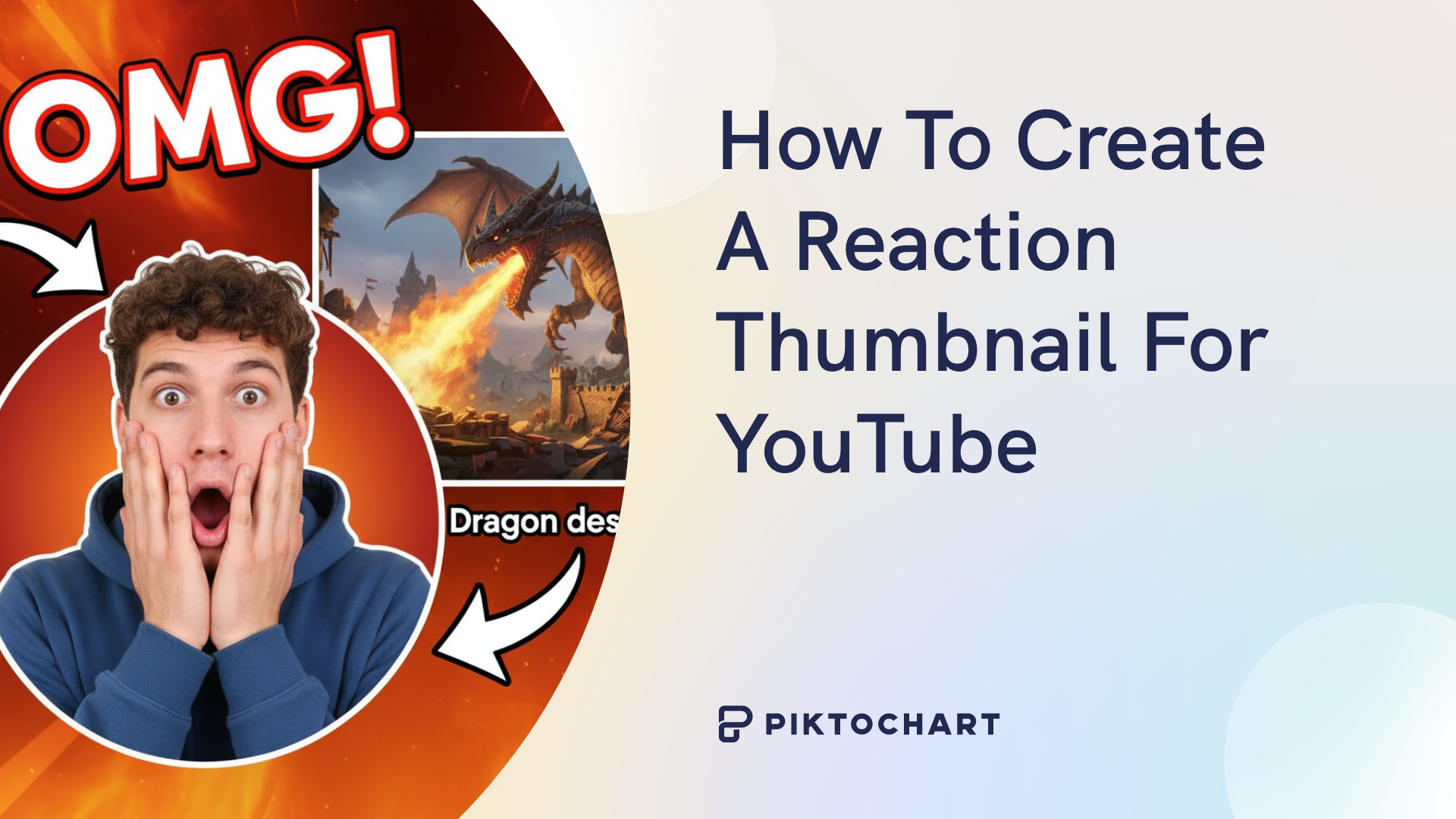
How to Design Thumbnails for Reaction Videos: Turn Scrollers into Viewers with Faces, Colors, and Smart Tricks
Picture this: You just finished an epic reaction to the latest viral song or wild challenge video. Your edit looks fire, the audio is crisp, and you hit upload. But hours later… crickets. Only a handful of views. What went wrong? Nine times out of ten, it’s the thumbnail. That tiny square image is your first (and sometimes only) chance to grab someone scrolling on YouTube. For reaction videos, a boring thumbnail is like showing up to a party in plain clothes while everyone else is dressed to impress.
The good news? You don’t need to be a pro designer or spend money on fancy software. Anyone can create thumbnails that make people stop, stare, and click. In this guide, we’ll walk through exactly how to design thumbnails for reaction videos that boost clicks, grow your channel, and feel fun to make. We’ll cover the faces that scream “watch me,” the colors that pop off the screen, the text that pulls viewers in, and simple tools that get the job done in minutes. By the end, you’ll have a clear plan to make thumbnails that turn your reaction content into a click magnet.
Reaction videos live or die by emotion. People click because they want to feel what you felt—shock, laughter, disbelief. Your thumbnail has to promise that feeling in a split second. Let’s dive in and build thumbnails that actually work.
Faces That Make Viewers Stop Scrolling
The number-one secret for reaction video thumbnails? Your face. Big time. Human brains are wired to notice faces first. When someone scrolls past hundreds of videos, a huge, exaggerated expression cuts through the noise like a siren.
For reactions, you want emotions turned up to eleven. Wide eyes, open mouth, hands on cheeks, or that “no way!” look. Neutral smiles don’t cut it here. Think about the videos that get millions of views—MrBeast-style reactions or gaming shock moments. The thumbnail almost always shows the creator looking stunned.
Here’s how to nail it:
- Take clear, well-lit close-up shots while recording. Pause at the exact second you feel the biggest reaction.
- Crop tight so your face fills most of the frame. Eyes and mouth should be the stars.
- Match the emotion to the video. Reacting to a scary jump-scare? Go full horror-face. Funny fail? Pure laughter with tears in your eyes.
Pro tip: Use your phone’s camera in good lighting (natural window light works great). No need for studio gear—just a plain background so you can easily cut yourself out later.

Look at examples like the split-screen style above. One side shows your shocked face, the other side teases what you’re reacting to. It tells the whole story without words.
Split-Screen Magic: Show Both Sides of the Reaction
Reaction thumbnails shine when you mix your face with a piece of the original content. This “split-screen” trick answers the viewer’s biggest question: “What exactly are they reacting to?”
Simple ways to do it:
- Put your face on the left or bottom in a circle or rounded rectangle.
- Drop a screenshot or short clip frame of the video on the other side.
- Add arrows or explosion graphics pointing from your face to the content.
This style works amazingly for music reactions, movie trailers, or TikTok compilations. It builds curiosity fast. Viewers see your wild expression and the thing that caused it—they can’t help but click.
Keep the split clean. Too many pieces and it looks messy on small phone screens. Aim for two or three main parts max.
Colors That Pop and Demand Attention
Colors are your secret weapon for making thumbnails stand out in a sea of similar videos. High contrast is the rule—bright against dark, warm against cool.
Best colors for reaction videos:
- Yellow or orange text on dark backgrounds (super eye-catching)
- Red accents for shock or urgency
- Bright blue or green for fun, upbeat reactions
Avoid soft pastels or low-contrast combos—they disappear in feeds.
Here’s a quick color cheat sheet you can copy:
| Color Combo | Best For | Why It Works |
|---|---|---|
| Yellow text + Black bg | Shocking reactions | Highest contrast on mobile |
| Red face border + Blue bg | Funny or angry reactions | Creates energy and movement |
| White text + Dark photo | Any reaction | Makes words easy to read fast |

Use the contrast guide above to check your work. If the thumbnail still looks good when you squint your eyes, you nailed the contrast.
Text Tricks That Turn Scrollers into Clickers
Text on your thumbnail should be short, bold, and impossible to ignore. Think 3–5 words max. Big, chunky fonts win every time.
Winning text ideas for reaction videos:
- “I CAN’T BELIEVE THIS!”
- “MIND BLOWN 😱”
- “WORST REACTION EVER”
- Numbers like “1000% SHOCKED”
Place text in the top or bottom third so it doesn’t cover your face. Use thick white letters with black or colored outlines so they pop no matter what background you have.
Font tips:
- Sans-serif styles like Impact, Arial Black, or Bebas Neue (free on most tools)
- Make the text at least 100–150 pixels tall on a 1280×720 thumbnail
- Add a tiny emoji for extra personality—fire, explosion, or crying-laughing faces work great
Remember: The text should tease the emotion, not spoil the whole video. You want viewers curious, not satisfied before they click.
Composition Rules That Make Thumbnails Pro-Level
Good layout keeps eyes moving across the thumbnail. The easiest trick? The rule of thirds.
Imagine your thumbnail divided into nine equal boxes like a tic-tac-toe board. Put your main face or key element where the lines cross. This feels natural to the eye and looks way more interesting than centering everything.


Other quick composition wins:
- Leave empty space around your face so it breathes
- Use leading lines (arrows, edges of screenshots) to point toward your expression
- Keep everything balanced—no giant empty areas on one side
Before you save, zoom out to thumbnail size on your phone. Does it still make sense? If yes, you’re golden.
Tools You Can Use Without Being a Designer
You don’t need expensive software. Here are the easiest options that creators actually use in 2026:
- Canva – Free and perfect for beginners. Drag-and-drop templates made for YouTube thumbnails. Thousands of reaction-style starters. Mobile app too.
- Photopea – Free online Photoshop clone. Great if you want more control.
- CapCut or VN Video Editor – Built-in thumbnail makers with AI suggestions.
- AI tools like free versions of Midjourney or thumbnail generators inside YouTube apps—upload your face and let it suggest shocked versions.
Comparison table for quick pick:
| Tool | Best For | Free? | Learning Curve | Mobile Friendly |
|---|---|---|---|---|
| Canva | Fast & easy templates | Yes | Super low | Yes |
| Photopea | Advanced edits | Yes | Medium | No |
| CapCut | Quick phone edits | Yes | Low | Yes |
| AI Makers | Instant ideas | Mostly | None | Varies |
Start with Canva. Open a YouTube thumbnail template, drop in your face photo, add text, and you’re done in under 10 minutes.
Your 7-Step Blueprint to Thumbnail Success
Follow these steps every single time and watch your click-through rate climb:
- Watch your own video and screenshot the exact moment your reaction is strongest.
- Open Canva and start a 1280×720 blank project.
- Add your face as the main layer and crop it big.
- Drop in the reaction clip screenshot on the opposite side.
- Choose bright colors and add high-contrast text.
- Check the rule of thirds and adjust placement.
- Save two versions—one with emoji, one without—and test which performs better.
Save your thumbnails in a folder named by video title so you can reuse successful styles.


See the difference in the before-and-after examples above? Small changes—like bigger text, stronger face, and better colors—can double your clicks.
5 Rookie Mistakes That Kill Click Rates (and How to Fix Them)
Even pros mess up sometimes. Dodge these:
- Too much text – Fix: Cut it down to 4 words max.
- Low contrast – Fix: Test on your phone in bright sunlight.
- Tiny face – Fix: Make your expression fill at least 60% of the frame.
- Blurry images – Fix: Always use 300 DPI or higher photos.
- Same thumbnail style every video – Fix: Keep your brand colors but change the emotion and layout to match each reaction.
Testing and Tweaking for Maximum Clicks
YouTube lets you test up to three thumbnails per video. Upload all three and check Analytics after 24 hours. The winner often surprises you—sometimes the silliest face wins!
Track what works over time. Keep a simple note: “Shocked face + yellow text = 8% CTR” or “Split screen with arrow = 12% CTR.” After ten videos, you’ll know your audience’s favorite style.
Update old videos with new thumbnails too. Many creators see views jump 20–50% just by refreshing thumbnails.
Wrap-Up: Start Designing Thumbnails That Actually Work
Designing thumbnails for reaction videos isn’t about being artistic—it’s about understanding what makes people curious in half a second. Focus on your face showing real emotion, bright contrasting colors, short punchy text, and clean split-screen layouts. Use free tools like Canva, follow the 7-step blueprint, and test everything.
Your next reaction video deserves a thumbnail that stops scrolls and starts plays. Grab your phone right now, capture that wildest face from your latest recording, and build your first new thumbnail using the steps above. You’ll be amazed how fast the clicks start rolling in.
Remember: The best thumbnails don’t just look good—they make people feel something before they even hit play. That’s the magic of reaction content, and now you have everything you need to create it.
